
How to Unpublish Content on CODOT
Watch this short video or follow the steps to unpublish your content instantly!


Tip: Unpublishing is the best option when you want to temporarily remove content from screens without losing it. The content stays safely in your library and can be republished instantly whenever needed.
Quick Steps
1
Open the Content page
Navigate to your content library and find the content you want to unpublish.
2
Click the three dots (⋮)
Open the action menu next to the content and select Unpublish.
3
Select players and confirm
Choose the players or playlists that should show this content, then click Unpublish.
4
Click confirm
Once confirmed, the content will be unpublished from the selected players.
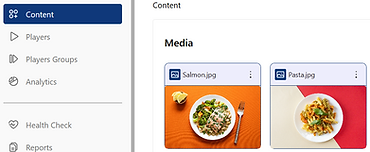
Step 1 — Open the Content Page
Navigate to the Content page and locate the content item you want to unpublish.
Step 2 — Open the Action Menu
Click the three dots (⋮) next to the content to reveal more options and select Unpublish.


Step 3 — Select Players
Choose the players or playlists from which you want to remove this content, then click Unpublish.
Step 4 — Confirm Unpublishing
Click Confirm to unpublish the content from the selected players.

Helpful Tips!
Unpublishing does not delete your content
You can unpublish from specific players only
Unpublished content can be republished anytime