
How to Add Apps on CODOT
Watch this short video or follow the steps to create apps instantly!


Tip: Apps allow you to add dynamic content quickly without manual setup. Using folders, tags, and preview ensures your apps stay organized and display exactly as intended before going live on your screens.
Quick Steps
1
Go to Apps
Navigate to Content → New → Apps.
2
Select an App
Choose the app you want to add.
3
Enter App Details
Add a name, and optionally choose a folder and tags.
4
Preview & Save
Preview the app, then save it to your content library.

Step 1 — Open Apps
Go to Content, click New, then select Apps.
Step 2 — Select an App
Choose the app you want to add from the available apps list.


Step 3 — Enter App Information
Fill in the app details:
-
Name
-
Folder (optional)
-
Tags (optional)
-
Background color
-
Other app-specific settings
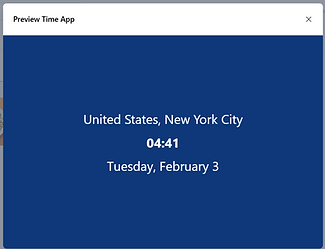
Step 4 — Preview the App
Use the preview option to see how the app will look on screen.
Helpful Tips!
Apps can be organized using folders and tags
Preview helps ensure correct display before publishing
App settings can be edited anytime