
How to Create Reports on CODOT
Watch this short video or follow the steps to create reports instantly!


Tip: Scheduled reports are ideal for regular performance tracking. Once set up, reports are generated automatically and sent to your inbox with a download link, saving time and ensuring you always have up-to-date insights without manual work.
Quick Steps
1
Go to Reports
Open the Reports page and click New Report.
2
Choose Report Type
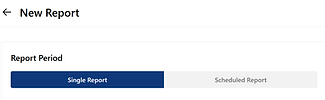
Select Single Report or Scheduled Report.
3
Configure Report Details
Enter the report name, date range, players or player groups, and report content.
4
Save & Generate
Save the report and receive a notification email with a download link once it’s ready.
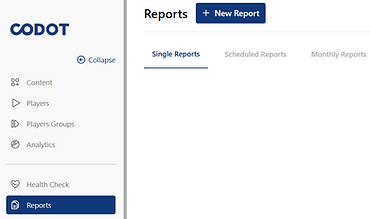
Step 1 — Go to Reports
Navigate to the Reports section from the main menu and click New Report.
Step 2 — Select Report Type
Choose how the report should be generated:
-
Single – generate the report once
-
Scheduled – generate the report automatically on a set schedule

Step 3 — Enter Report Details
Fill in the report information:
-
Report name
-
Start date and end date
Step 4 — Select Players or Player Groups
Choose which players or player groups should be included in the report.


Step 5 — Choose Report Content
Select the data you want to include in the report, such as playback with errors or user touch interactivity.
You can also filter the report to include only content that matches specific tags or content types.
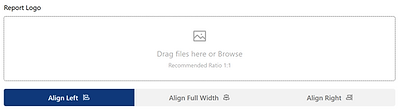
Step 6 — Customize report
Add a logo to brand your report and adjust alignment.

Step 7 — Add Notification Emails
Enter the email addresses that should receive a notification once the report is ready. When the report is generated, a download link will be sent to the selected email addresses.
Helpful Tips!
Reports can be generated once or scheduled automatically
An email with a download link can be sent when the report is ready
Player groups save time when reporting on multiple screens