
How to Delete Content on CODOT
Watch this short video or follow the steps to delete your content instantly!


Tip: Deleted content is removed permanently and will no longer appear on any screens.
Quick Steps
1
Open the Content page
Navigate to your content library and find the content you want to delete
2
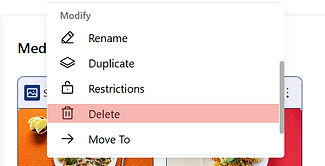
Click the three dots (⋮)
Open the action menu next to the content and select Delete.
3
Confirm deletion
Confirm your action to permanently remove the content.
4
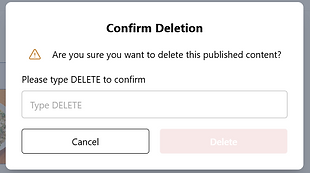
Type DELETE to confirm
If the content is currently published, you’ll be asked to type DELETE to confirm.
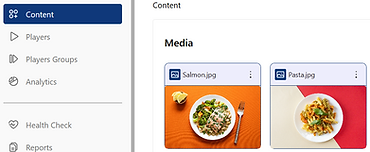
Step 1 — Locate Your Content
Find the content item you want to remove from your library.
Step 2 — Open the Action Menu
Click the three dots (⋮) next to the content to reveal more options. Scroll down and select Delete.
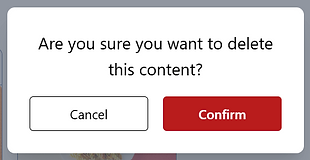
Step 3 — Confirm Deletion
Confirm the action to permanently delete the content from CODOT.
Step 4 — Confirm Deletion (Published Content)
If the content is published, type DELETE to confirm permanent removal.
Helpful Tips!
Deleted content is permanently removed
Published content requires extra confirmation for safety
If you may need it later, consider unpublishing instead of deleting