
How to Add Restrictions on CODOT
Watch this short video or follow the steps to add restrictions to your content to any screen instantly!
Tip: Use restrictions to control when content appears without republishing or duplicating it. This is ideal for time-based promotions, scheduled announcements, or limiting content to specific hours or dates while keeping everything organized in one place.


Quick Steps
1
Go to Players
Open the Players page and select the player you want to edit.
2
Open Player Content
Click Content inside the selected player.
3
Open Content Settings
Click the three dots (⋮) next to the content and select Restrictions under Modify.
4
Set Rules and Save
Choose Play if or Don’t play if, set date and time rules, then save your changes.
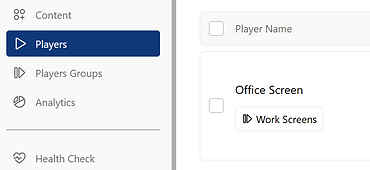
Step 1 — Go to Players
Navigate to the Players section and click the player where the content is published.
Step 2 — Open Player Content
Inside the player, click Content In Player to view all assigned content.


Step 3 — Open Content Options
Find the content you want to restrict, click the three dots (⋮), then select Restrictions under Modify.
Step 4 — Choose Restriction Type
Select how the content should behave:
-
Play if – content plays only when conditions are met
-
Don’t play if – content is hidden when conditions are met


Step 5 — Set Date and Time Rules
Define when the restriction applies by setting:
-
Start date
-
End date
-
Time range
Step 6 — Adjust Display Settings
Open Display Settings to customize how the content appears on screen:
-
Add transitions between content
-
Adjust duration (how long the content stays on screen)
-
Set object fit to control how the content fills the screen

Helpful Tips!
Restrictions apply per content
Content remains published even when restricted
You can edit or remove restrictions anytime